Kew (/kjuː/)

A terminal music player.

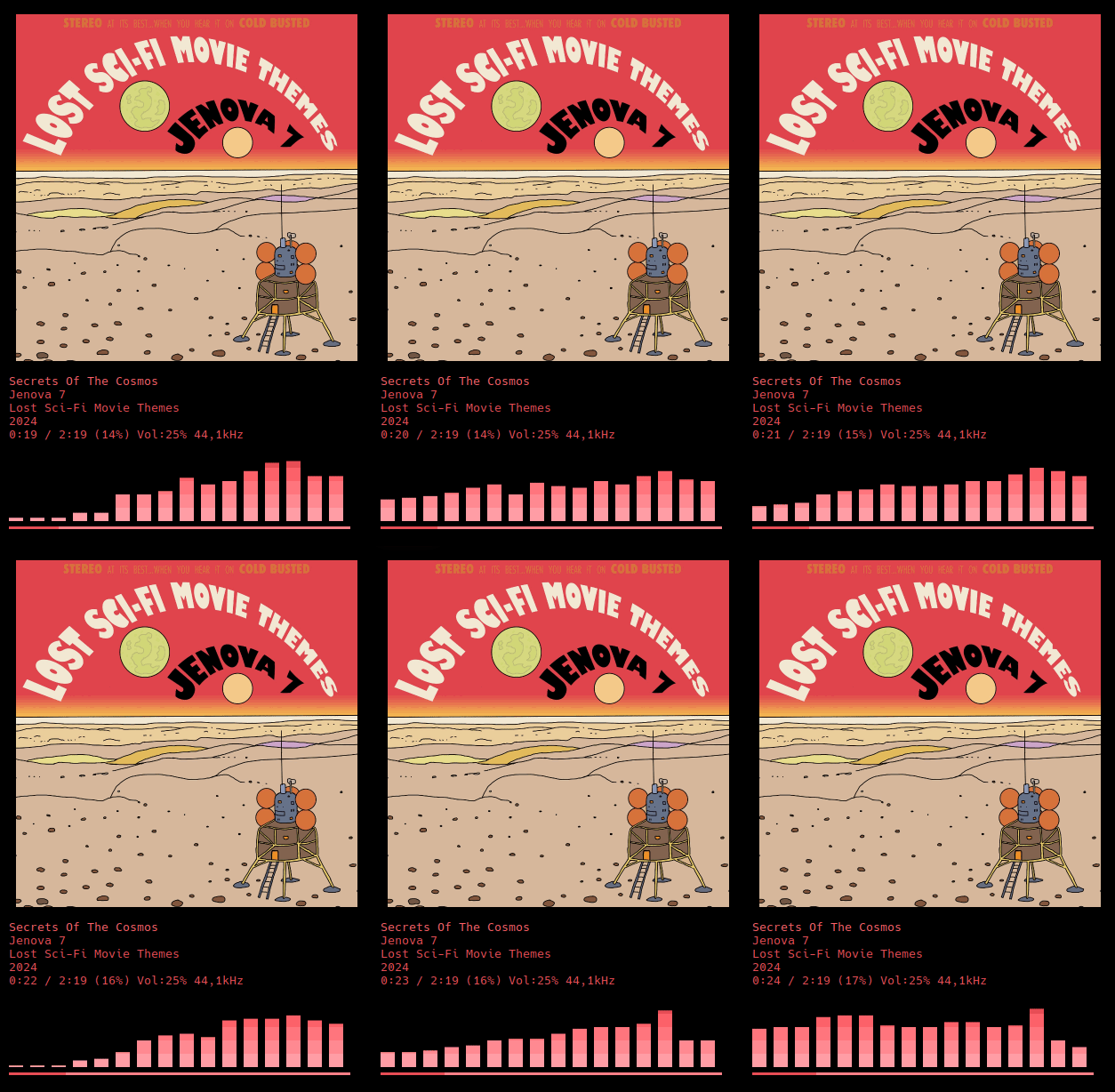
Screenshot playing the album "Lost Sci-Fi Movie Themes" by Jenova 7

Features

Contributing and Bug Reports

Active development and issue tracking happens at Codeberg. Please open new issues and pull requests there.

Installing

Install through your package manager or homebrew (macOS). If you can’t find it on your distro, or you want the bleeding edge, follow the Manual Installation Instructions.

For NixOS, there is an official package but also a Nix Flake that is tied to the latest commit.

For Artix it’s available in the artist repository.

For Fedora there is an unofficial repo.

Usage

kew creates a playlist with the contents of the first directory or file whose name matches the arguments you provide in the command-line.

kew cure great

This creates and starts playing a playlist with ‘The cure greatest hits’ if it’s in your music library.

It works best when your music library is organized this way:

artist folder->album folder(s)->track(s).

Example commands

Key Bindings

Basic

Advanced

Configuration

Linux: ~/.config/kew/

macOS: ~/Library/Preferences/kew/

Key bindings can be added like this:

bind = +, volUp, +5%

If you have an old install of kew, delete the kewrc file to make this style of bindings appear.

kew state (for settings that can be changed in-app) is kept in ~/.config/kew/kewstaterc.

If you change a setting in-app it will be tracked by kewstaterc and not kewrc.

kewrc is never changed by kew with the exception of when you run kew path.

If you delete your kewrc a new default one will be generated. You wont get newer config options listed in your config file unless you do this.

Themes

Press t to cycle available themes.

To set a theme from the command-line, run:

kew theme <themename> (ie 'kew theme midnight')

Put themes in ~/.config/kew/themes (~/Library/Preferences/kew/themes on macOS).

Do not edit the included themes as they are managed by kew. Instead make a copy with a different name and edit that.

Try the theme editor (by @bholroyd): https://bholroyd.github.io/Kew-tip/.

Visulizations / Chroma

Starting with kew 4.0, you can add visualizations to kew by installing Chroma, an app by another developer.

You’ll need to install a specific commit, which is the latest one that works.

How to install Chroma:

git clone https://github.com/yuri-xyz/chroma.git

cd chroma

git checkout fb00b6e

cargo install --path . --features audio

Enable and cycle through the visualizations by pressing c in track view.

Disable by pressing b.

This works by kew being fed frames from Chroma and does not add bloat to kew.

Configuration

You can customize Chroma’s behavior in your kewrc file:

[chroma]
chromaPath=/path/to/your/custom.preset
chromaDevice=PipeWire Sound Server

If Colors or Graphics Look Wrong

Cycle i until they look right.

Press v to turn off visualizer.

Press b for ASCII covers.

A terminal emulator that can handle TrueColor and sixels is recommended. See Sixels in Terminal.

Lyrics

Lyrics can be read from a provided .lrc file that matches the audio file in name and content, from Vorbis comment metadata or from SYLT embedded tags on mp3 files.

Timestamped lyrics will be shown automatically in track view. Press m show full page lyrics.

Playlists

To load a playlist: type kew list <name>

To export a playlist, press x. This will save a file in your music path with the name of the first song in the queue.

There is also a favorites playlist function:

Add current song: press .

To load ‘kew list fav’: kew .

Scrobbling

kew’s private and offline nature means we don’t support Scrobbling/last.fm directly. Instead tools such as PanoScrobbler are recommended. See: https://github.com/kawaiiDango/pano-scrobbler.

Attributions

kew makes use of the following great open source projects:

Contact

Comments? Suggestions? Send mail to kew-player@proton.me.


  1. kew displays it’s status in Discord by default, but this can be disabled both in Discord and in the kew config file kewrc.